
Your own VPN with Exitru: from VPS to connection
From a rented Linux VPS to a working connection: SSH, host-key and privilege checks, protocol choice, deployment and troubleshooting without an Exitru account.
Exitru can configure a VPN on a Linux VPS you already rent: enter SSH access details, verify the server, choose an available protocol and run the installation. You do not need an Exitru account or a subscription to our network. These app features are free; you pay your hosting provider for the VPS separately.
What to prepare before opening the app
You need a running Linux machine with a public address and SSH access. The current deployment flow supports x86-64 and arm64 architectures; the app checks the platform before installation. A Windows image, network storage appliance or ordinary shared hosting is not a substitute for a Linux VPS.
Have the address, SSH port, username and password or a supported private key ready. Changing server settings requires root or the appropriate passwordless sudo access for the installation flow. If you do not know what privileges the user has, check your hosting panel or provider’s documentation.
You also need access to the hosting control panel and its external firewall settings. The in-app installer cannot repair an unreachable machine for you. If important services already run on the VPS, back up the machine and check compatibility: VPN deployment changes its configuration.
A separate machine makes a first setup easier to understand. This is not a recommendation to buy an expensive plan: the required resources depend on the protocol, number of connections and workload. Exitru does not promise a particular speed from a CPU name or memory amount alone.
Step 1. Check that SSH is reachable
SSH provides an encrypted connection to a remote server. The address and port must identify your machine. The general manual test from a terminal follows the syntax in the OpenSSH manual:
ssh -p 22 your-user@your-server-address
Replace the username and address, and replace 22 if your SSH port is different. You do not have to run this command: Exitru performs its own access check. A terminal test is useful when you need to separate a VPS access problem from a VPN installation problem.
If the server does not respond, check that it is running, the address matches and SSH is allowed. The hosting panel’s external firewall and the firewall inside Linux are separate layers; allowing a port at one does not override a block at the other. Ubuntu’s official firewall guide explains the operating-system side.
Do not open every incoming port to fix a single error. Check SSH first; the VPN protocol’s ports belong to the deployment plan. Keep the only working SSH route available until you have confirmed access through your provider’s console.
Step 2. Open your server setup
Install Exitru from downloads. You can continue without an account. Find your self-hosted servers and choose Deploy a new server. On desktop, this section is reached through settings; its placement on a phone differs, but the action has the same purpose.
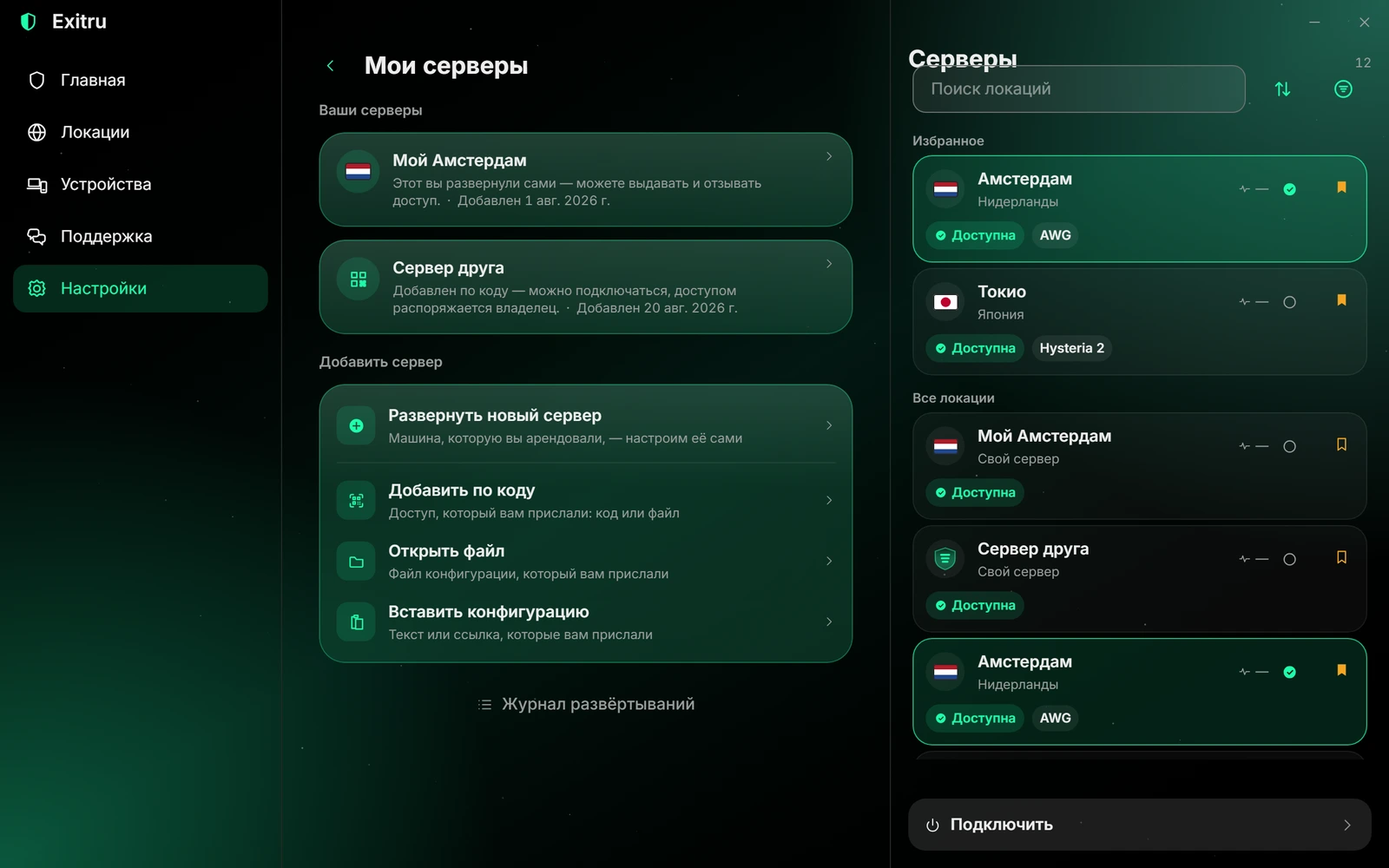
A Russian-language Windows 1.0.45 app capture. Addresses, servers and states are demonstration data. No live passwords or private keys are shown. «Развернуть новый сервер» means Deploy a new server.
Enter the server address. If SSH is not on port 22, include its port in the format the field accepts. An IPv6 address needs square brackets, such as [2001:db8::10]:2222. This is an example from a documentation address range, rather than a ready-to-use server.
Enter the SSH username. It does not have to match your Exitru email or the name assigned to the VPS in your hosting panel. A wrong username can cause an authentication failure even when the password is correct.
Step 3. Choose a password or key and verify the host key
Use the password tab for the SSH user’s password. On the key tab, paste the entire private key, including its BEGIN and END lines. The current setup screen specifies Ed25519 and ECDSA support; RSA is not supported by this route. Renaming a key does not change its format: prepare a supported authentication method instead.
Passwords and private keys are secrets. Keep them in your own secure storage. Use the option to save a password on the device deliberately, particularly on a shared computer. You do not need to send these details to support for ordinary troubleshooting.
On the first connection, the app shows the SSH server key fingerprint. Compare it with a trusted source, such as your provider’s panel or console. That helps establish that the intended machine is responding. Clicking This is my server without comparing anything does not perform verification for you.
If a previously known fingerprint changes, stop and investigate. A VPS reinstall can cause that change, but the message alone cannot distinguish it from an intercepted connection. Approve a new fingerprint only after an independent check, rather than simply to continue deployment.
Step 4. Understand the access-check result
Choose Check. The app checks the address, SSH reachability and sign-in in sequence. Successful SSH access does not mean the VPN is installed; it means you can proceed to the deployment plan.
If checking stops, use the stage that failed:
| Result | What to check |
|---|---|
| Address not found | The spelling; use the public IP from the hosting panel if needed |
| SSH port does not respond | The port, machine state and both firewall layers |
| Authentication rejected | Username, keyboard layout, password or key type |
| Insufficient privileges | Root or suitable sudo access |
| Unsupported platform | Linux and a supported VPS architecture |
| Host key changed | The reason through the provider’s independent console |
Changing the VPN protocol cannot fix insufficient SSH privileges: deployment has not reached that stage. First obtain a successful access check for the machine.
Step 5. Choose a deployment plan
After the checks, choose one of the protocols offered by your platform and app version. The server’s capabilities also affect the options. Do not copy a protocol name from another person’s screenshot into your plan if the app does not offer it.
Broadly, AmneziaWG uses UDP, VLESS with REALITY provides a TCP-based route, XHTTP is a VLESS transport, and Hysteria 2 also needs available UDP. These are different network options rather than a ranking from worst to best. Start with an option suitable for your network and test the actual result.
If the plan offers a domain or cover site, read the explanation for that option. Your own domain requires correct DNS settings; entering someone else’s domain does not make it yours. Automatic selection does not turn every external service into a guaranteed communication channel.
White Exit belongs to a separate supported Apple and self-hosted-server scenario using an available carrier channel. It is not a universal replacement for an ordinary VPN and does not promise a connection in every network. Use the capabilities your particular app build actually shows.
Step 6. Deploy the VPN and save the result
Review the plan and start deployment. The app shows its stages and final result. Keep the device connected while it runs. Do not start several installations on the same machine at once or interrupt one just because a stage takes longer than the previous stage.
If the process stops, record the stage and error message. Some work may already have completed: an unsuccessful result does not mean the server is unchanged. Retry as the app advises, and save important data before considering a complete VPS reinstall.
After success, the server appears in your list. Select it, return to Home and connect. Begin with an ordinary connection without custom split-tunneling rules. If deployment succeeds but connection fails, check the protocol’s port, external firewall and transport reachability from your current network separately.
What differs by platform
Windows displays settings in the center area, while a server list may remain on the right. Android uses separate mobile screens and a system VPN permission. iPhone, iPad and macOS use Apple’s system approval flows. Particular connection options, including White Exit, depend on the Apple build and server.
A section in this guide does not establish that every protocol is supported in every build. Give support the exact platform, version and chosen deployment option. The Russian-language capture in this article shows a real Windows interface; it does not replace your platform’s screen.
Using the server afterwards
You are responsible for the VPS bill, panel access, updates and keys. If the hosting provider suspends the machine or its address changes, an Exitru subscription will not restore it automatically. Recover access through the provider and your saved server information.
When giving another device access, use the configuration-sharing feature the app provides. An access link or file may contain connection secrets: send it only to the intended recipient. Do not publish it as if it were an ordinary setup guide.
Once the basic VPN works, explore split tunneling. If you prefer a ready-to-use option to administering a VPS, compare Exitru network plans.
Frequently asked questions · FAQ
Do I need an Exitru account?
No. Deploying and connecting to your own server requires neither an account nor a subscription to the Exitru network. Your hosting provider charges separately for the VPS.
Can I deploy without server administrator privileges?
Deployment needs permission to change the server configuration. An ordinary user without suitable sudo access will not pass the required check.
Why can connection fail after a successful deployment?
Installation success and transport reachability are separate checks. Review the VPN port, firewall rules and your network’s protocol support. Give support the stage and error message while keeping secrets private.