
Connect to Exitru: from choosing a plan to your first connection
Use the ready-to-use network without a VPS: choose a term, install the app, connect to a location and check the result on Windows, Android and Apple.
To use the ready-to-use Exitru network, choose a plan, create an account, install the app and connect to a location. You do not need to rent a VPS or configure a server. This guide covers the whole process, including what to check when a payment is complete but the connection is not working.
What you connect to and what you pay for
A subscription provides access to the Exitru network. Our team configures the servers; you control the connection in the app. The release network includes the Netherlands, Germany, Sweden, Finland and the United States. Changing countries does not require a different plan. Individual server availability depends on network conditions and maintenance.
All three plans have the same base features and a three-device limit. They differ in duration and total price: ₽199 for 30 days, ₽499 for 90 days or ₽1,490 for 365 days. This is a one-time payment for the selected term, without automatic renewal. Review the full amount and duration on the plans page before confirming.
Free app features for your own VPS are a separate way to use Exitru. That path needs no Exitru account, but does require a server that you pay your hosting provider for. See the self-hosted server guide for that setup.
Step 1. Create an account and choose a term
Open the plans page and choose a duration. Create an account with your email address and a password, or sign in to your existing account. Use an email address you will retain access to: it is important for verification and password recovery.
Before paying, check the account you are signed into, the selected plan and the total charge. Follow one of the payment methods actually available in the form. A confirmation from your bank is not the final account state: wait for the order result and check your access expiry date in the account area.
If the order is still being processed, refresh its status. Do not create several payments in a row to try to speed up confirmation. If an error remains, save the order number and contact support. Access depends on the subscription state, rather than a screenshot of a payment notification alone.
Step 2. Install the app for your platform
Visit downloads. The page suggests a platform based on your device, but you can change it manually. Check the operating system, version and requirements. Downloading starts only when you choose it. If an installation link for a platform has not been provided, the page shows its status and a clearly labelled demo alternative.
For an installer file, open the file details if you want to check its SHA-256 checksum. A matching checksum confirms that the downloaded bytes match those listed on the site. It does not replace checking the website address or reading operating-system prompts about the app.
Windows
Run the installer from the official downloads page and follow its steps. The tunnel uses the Exitru service and a network adapter. If Windows requests permission to install those components, verify the installer’s origin and confirm the action. Do not disable Windows protection for an unexpected file received in a message.
After installation, open the app normally. If it reports that the service is not responding or the adapter is missing, repeatedly pressing Connect will not repair the installation. Run diagnostics; if the app identifies a missing component, reinstall the official package.
Android
Use the installation method provided for Android on the downloads page. The first VPN connection may trigger an Android system permission dialog. This is separate from signing in: the tunnel cannot start without the required consent. The mechanism is documented in the official VpnService reference.
Only one app can be Android’s selected VPN service at a time. Disconnect another VPN before testing Exitru. A system VPN icon does not confirm that you selected the intended location; check the location inside Exitru.
macOS, iPhone and iPad
Install the app using the method shown for your platform. VPN permissions are approved through Apple’s system interface; they do not require typing your Exitru account password into an unrelated window. Apple’s VPN information explains where to find VPN configurations on its devices.
An employer- or school-managed device may restrict network settings. Installing an app does not override those rules. Tell support if the device is managed; do not try to bypass its administrative policy.
Step 3. Sign in to the same account
Open sign-in in the app and use the account associated with your subscription. If you use sign-in codes, choose that method and use a code issued in your own account. A code grants access: do not post it publicly or send it to an unknown person.
If two-step verification is enabled, enter the current code from your authenticator app. If you have forgotten the password, use recovery from the sign-in page. Creating another account does not move your paid subscription from the original one.
After signing in, check the subscription and device list. The base limit is three devices. Unlink a phone or computer you no longer use. A reinstall and a new physical device are not necessarily represented in the same way; use the account’s actual device list rather than guessing which entry to remove.
Step 4. Choose a location and connect
Open Locations or the server list, find the country you want and select a server. On a wide Windows screen, the list is available beside Home; on a phone, selection opens a separate screen. Favorites help you return to a location without searching again.
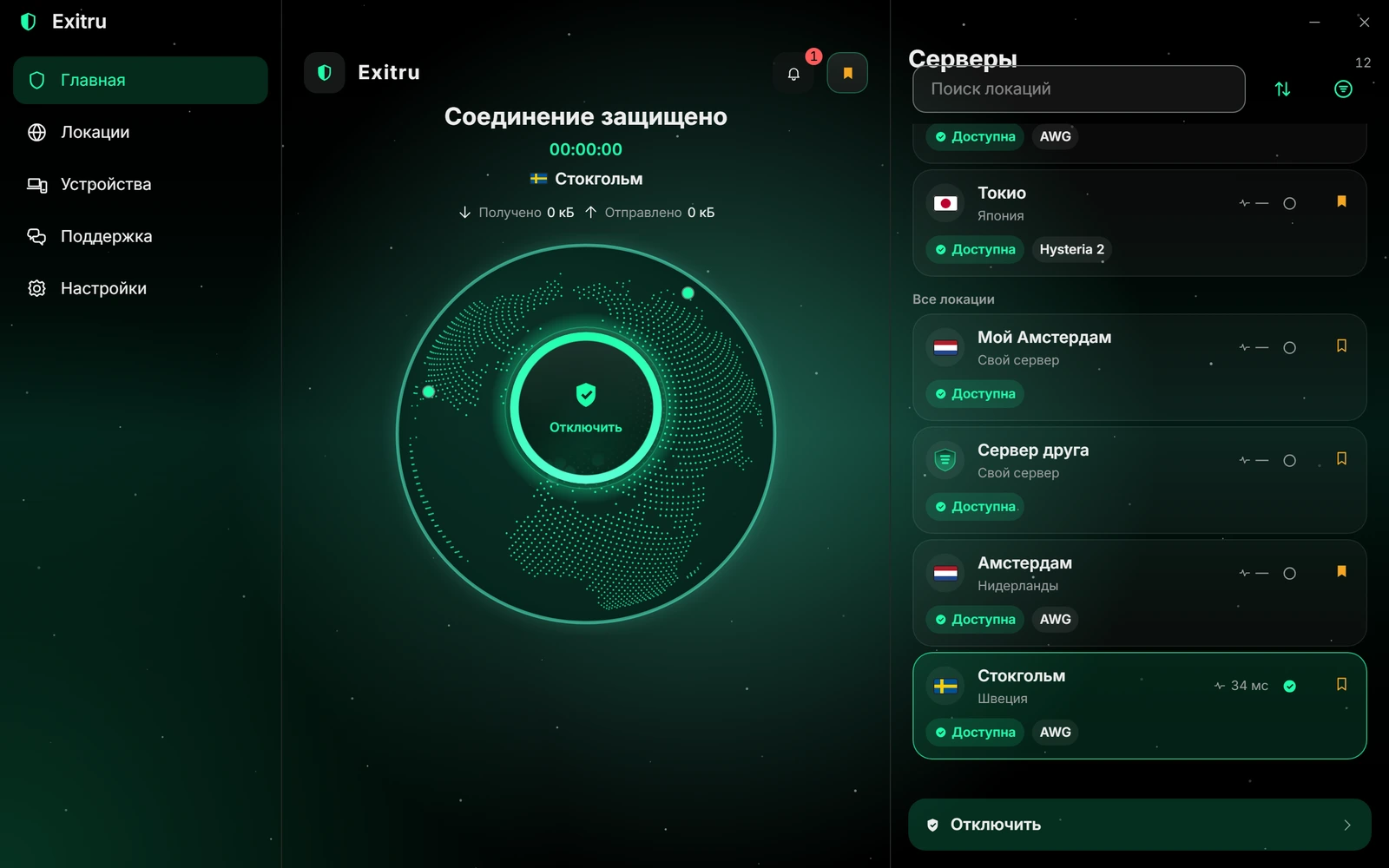
A real Russian-language Windows 1.0.45 app capture. Server names, statuses and measurements are demonstration fixtures, not a report of the current network. «Главная» is Home; «Локации» is Locations.
Press the connection button and wait for the final status. Selecting a location does not itself establish a tunnel. Approve any required system prompt on first use. Once connected, Home shows the connection state and selected location.
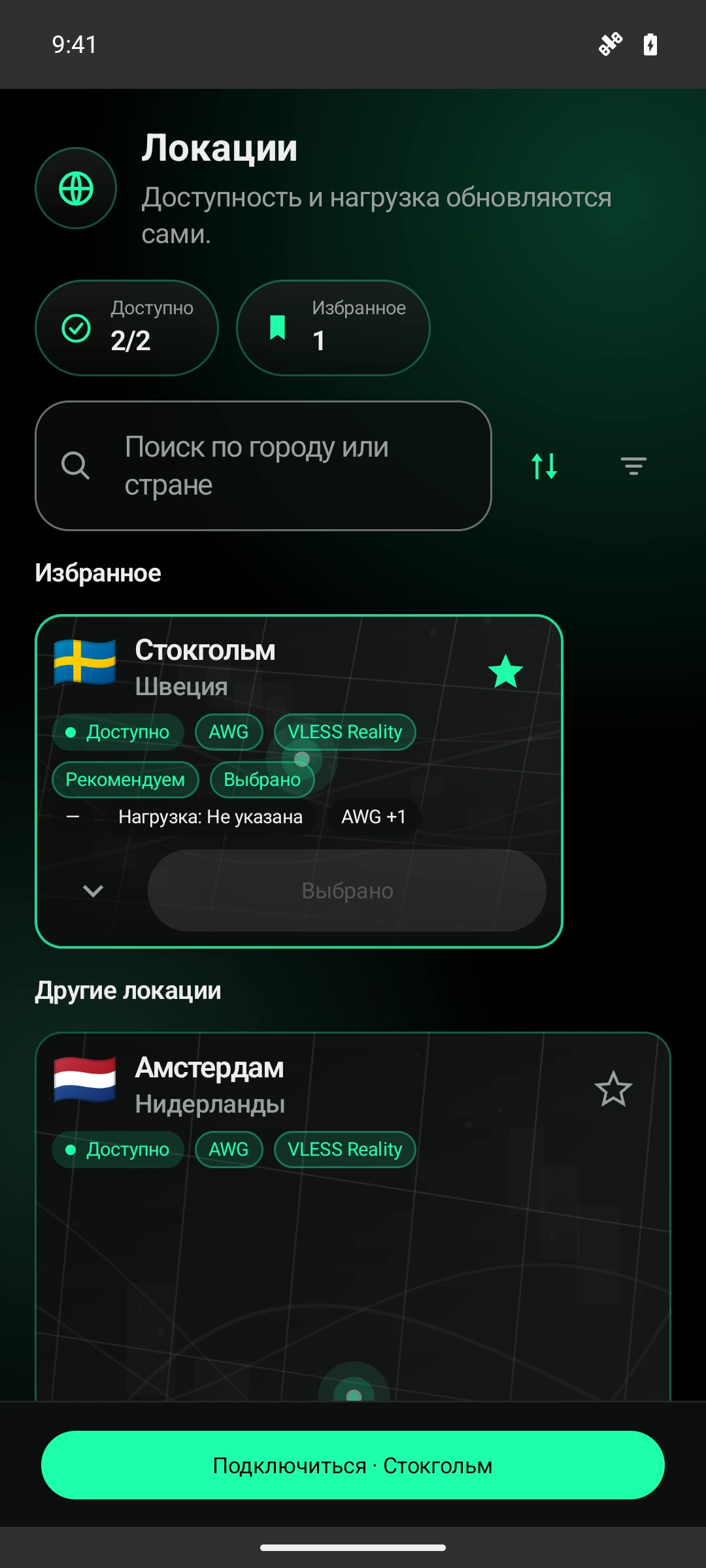
A native Android 0.1.0 capture in Russian. The capture scenario uses fictional locations and measurements. It demonstrates the interface layout, rather than a separate list of subscription countries.
Step 5. Check the connection and route
Open the site you need after the connection has been established. If a connection was opened before you enabled the VPN, close it and make a new request. Begin with ordinary routing and no custom exceptions: this separates a tunnel problem from a rule-list mistake.
With split tunneling enabled, some sites may go directly while others use the VPN. One website’s external address does not prove the route of every app. Check both the selected and effective mode in settings, then run the built-in split-tunneling check. The routing guide explains the process in detail.
Do not choose a server solely from a single latency number. Latency depends on your network and the route to the server; download speed also depends on the available channel and destination service. The interface makes no promise of identical results across all internet providers.
If you cannot connect
Check one condition at a time so you can tell what changed:
- Does the internet work without the VPN? If not, begin with Wi-Fi, mobile connectivity or your provider.
- Are you signed in to the right account, with an active access period?
- Have you reached the device limit? Review the list and remove an unused device.
- Did you approve the system permission? On Windows, is the Exitru service responding?
- Does another location connect, using a protocol available for that location?
- Could custom split rules or the setting that blocks traffic outside the VPN affect the test?
Change one setting at a time. A protocol that fails in one network may work in another; changing protocols is not a promise to overcome every restriction. Do not delete the account or pay again to repair a network error.
If you need help, open support. Include the platform, app version, location, error time and message. On Windows, run diagnostics and review the report before sharing it. Do not send a password, sign-in code, private key or banking information.
Frequently asked questions · FAQ
Do I need a VPS for the Exitru network?
No. The Exitru team maintains the servers in this scenario, and you pay for an access term. A VPS is only required for the separate self-hosted setup.
Does the subscription renew automatically?
No. Payment is a one-time charge; renewal requires your action. Check the current expiry date in your account after each order.
Can I look at the app first?
Yes. The homepage demo starts manually and lets you explore the interface. It uses fictional data and does not create a VPN connection.
Ready to connect?
Choose an access term, install the app and start with one location without custom rules. Once the basic connection works, adjust favorites and routes to suit your needs.